
Dashboard Overview
The Livestork dashboard is your home screen, a live summary of your farm's operational and financial health, designed so you can assess the state of your business in under a minute.
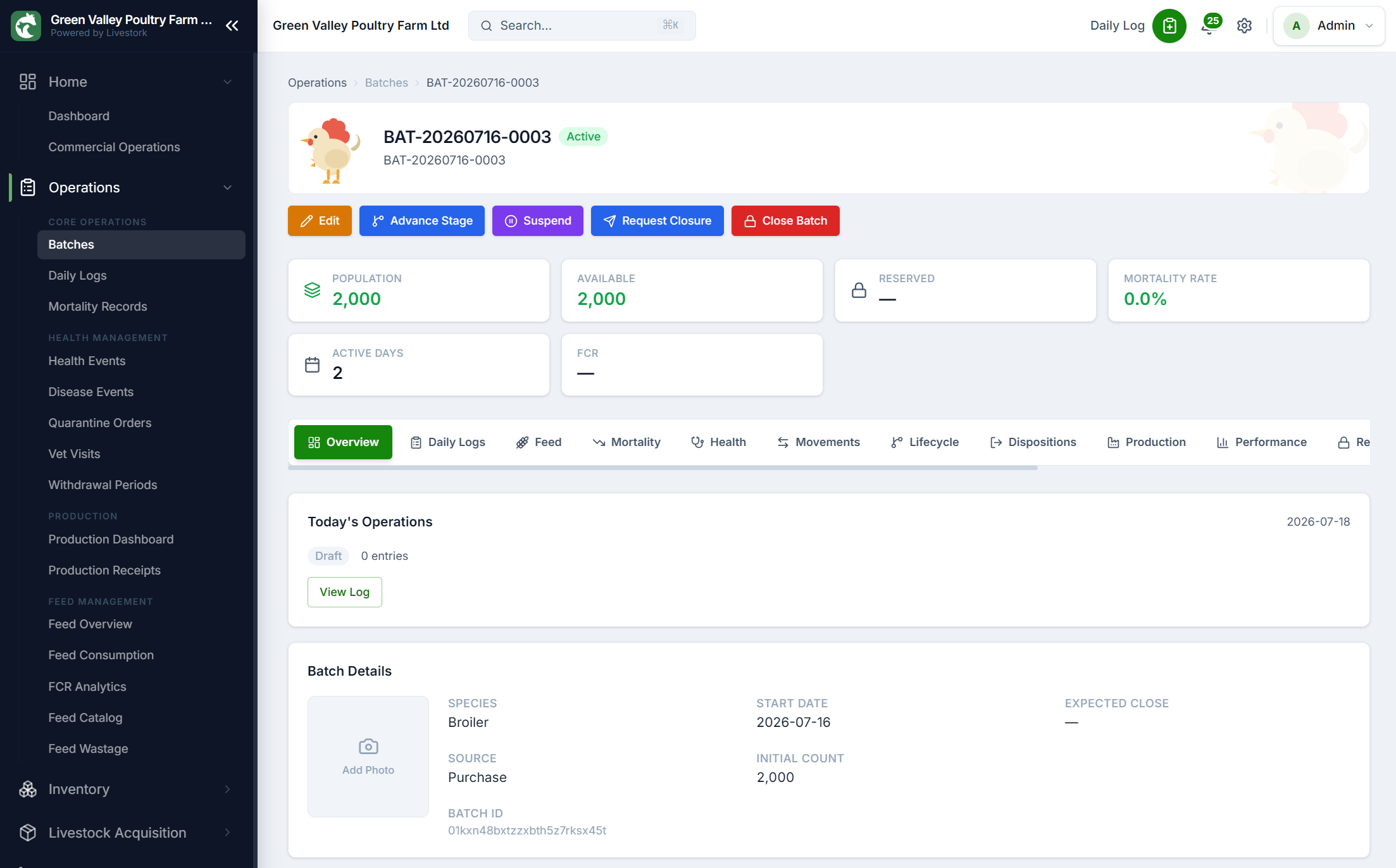
What you see on the dashboard
The dashboard is divided into several sections, each providing a different lens on your operation. The sections visible to you depend on your role; Admins and Managers see all sections, while Operators see only the operational panels relevant to their work.
- KPI cards: Top-level metrics at a glance.
- Active batch summary: Live status of all open batches.
- Smart alerts: Items requiring attention (high FCR, low stock, overdue invoices).
- Recent activity: A chronological feed of recent actions in the system.
- Quick actions: Shortcuts to the most common tasks for your role.
KPI cards
The top row of the dashboard shows four key performance indicators:
Active Batches
Number of batches currently in production across all sites.
Average FCR
Feed conversion ratio averaged across all active batches. Lower is better.
Revenue (MTD)
Total revenue recorded this month from all sales transactions.
Outstanding AR
Total amount owed by customers, excluding future-dated invoices.
Each KPI card shows the current value and a delta indicator compared to the previous period (last 30 days by default). A green arrow means improvement; a red arrow means the metric has worsened.
Active batch summary
The batch summary table lists all open batches with their current status: age in days, current bird count, current FCR, and a colour-coded performance indicator (green = on target, amber = watch, red = action required).
Click any batch row to navigate directly to that batch's detail page where you can record updates, review history, or close the batch.
Smart alerts
Smart alerts highlight items that need attention, grouped by category:
- High FCR: Batches where FCR has exceeded the alert threshold configured in settings.
- Low stock: Inventory items below their reorder level.
- Overdue invoices: Customer invoices past their due date.
- Pending approvals: Purchase orders awaiting your approval.
Note
Recent activity feed
The activity feed shows the last 20 actions recorded in your organisation, with the user who performed each action and a timestamp. This is useful for staying aware of what your team has been doing without needing to check each module individually.
For a full audit history, go to Administration > Audit Log.
Customising your view
The dashboard layout adapts to your role automatically. Individual users can rearrange dashboard panels by clicking the "Customise" button (top right corner of the dashboard) and dragging panels into their preferred order.
Tip